> For the complete documentation index, see [llms.txt](https://docs.doku.com/llms.txt). Markdown versions of documentation pages are available by appending `.md` to page URLs; this page is available as [Markdown](https://docs.doku.com/get-started/manage-business/set-up-integration/webhook-payment-notification.md).
# Webhook / Payment Notification
## 🇮🇩 Business Account
Set your payment notification URL to receive real-time updates via API webhook (callback). The following guides show how to set up the payment notification URL for each payment method:
1. [#bank-transfer-virtual-account](#bank-transfer-virtual-account "mention")
2. [#cards](#cards "mention")
3. [#e-wallet](#e-wallet "mention")
4. [#convenience-store](#convenience-store "mention")
5. [#paylater](#paylater "mention")
6. [#direct-debit](#direct-debit "mention")
7. [#digital-banking](#digital-banking "mention")
8. [#qris](#qris "mention")
### Bank Transfer (Virtual Account)
You can configure your payment notification URL for Bank Transfer (Virtual Account) payment methods by following the steps below:
1. Log in to [DOKU Dashboard](https://dashboard.doku.com/bo/login?utm_source=docs), and then access the side navigation bar
2. Select **Settings** from the menu
3. **Settings** page will appear. Under **Payment Settings** section, select **Virtual Account**
4. **Virtual Account Settings** page will appear, then click **Configure** based on the Virtual Account of your choice
5. A pop-up box will appear where you can set your payment notification URL, then click **SAVE**.
***
### Cards
You can configure your payment notification URL for Cards payment method by following the steps below:
1. Log in to [DOKU Dashboard](https://dashboard.doku.com/bo/login?utm_source=docs), and then access the side navigation bar
2. Select **Settings** from the menu
3. **Settings** page will appear. Under **Payment Settings** section, select **Cards**
4. **Cards Settings** page will appear, then click **Payment Configuration** tab
5. **Payment Configuration** tab will appear, click **Edit** and insert your payment notification URL in the field, then click **Submit** to save the changes.\

***
### e-Wallet
You can configure your payment notification URL for e-Wallet payment methods by following the steps below:
1. Log in to [DOKU Dashboard](https://dashboard.doku.com/bo/login?utm_source=docs), and then access the side navigation bar
2. Select **Settings** from the menu
3. **Settings** page will appear. Under **Payment Settings** section, select **e-Wallet**
4. **e-Wallet Settings** page will appear, then click **CONFIGURE** based on the payment method of your choice
5. A pop-up box will appear where you can set your payment notification URL, then click **SAVE**.
***
### Convenience Store
You can configure your payment notification URL for Convenience Store payment methods by following the steps below:
1. Log in to [DOKU Dashboard](https://dashboard.doku.com/bo/login?utm_source=docs), and then access the side navigation bar
2. Select **Settings** from the menu
3. **Settings** page will appear. Under **Payment Settings** section, select **Convenience Store**
4. **Convenience Store Settings** page will appear, then click **CONFIGURE** based on the payment method of your choice
5. A pop-up box will appear where you can set your payment notification URL, then click **SAVE**.
***
### PayLater
You can configure your payment notification URL for PayLater payment methods by following the steps below:
1. Log in to [DOKU Dashboard](https://dashboard.doku.com/bo/login?utm_source=docs), and then access the side navigation bar
2. Select **Settings** from the menu
3. **Settings** page will appear. Under **Payment Settings** section, select **PayLater**
4. **Paylater Settings** page will appear, then click **CONFIGURE** based on the payment method of your choice
5. A pop-up box will appear where you can set your payment notification URL, then click **SAVE**.
***
### Direct Debit
You can configure your payment notification URL for Direct Debit payment methods by following the steps below:
1. Log in to [DOKU Dashboard](https://dashboard.doku.com/bo/login?utm_source=docs), and then access the side navigation bar
2. Select **Settings** from the menu
3. **Settings** page will appear. Under **Payment Settings** section, select **Direct Debit**
4. **Direct Debit Settings** page will appear, then click **CONFIGURE** based on the payment method of your choice
5. A pop-up box will appear where you can set your payment notification URL, then click **SAVE**.
***
### Digital Banking
You can configure your payment notification URL for Digital Banking payment methods by following the steps below:
1. Log in to [DOKU Dashboard](https://dashboard.doku.com/bo/login?utm_source=docs), and then access the side navigation bar
2. Select **Settings** from the menu
3. **Settings** page will appear. Under **Payment Settings** section, select **Digital Banking**
4. **Digital Banking Settings** page will appear, then click **CONFIGURE** based on the payment method of your choice
5. A pop-up box will appear where you can set your payment notification URL, then click **SAVE**.
***
### QRIS
You can configure your payment notification URL for QRIS by following the steps below:
1. Log in to [DOKU Dashboard](https://dashboard.doku.com/bo/login?utm_source=docs), and then access the side navigation bar
2. Select **Settings** from the menu
3. **Settings** page will appear. Under **Payment Settings** section, select **QR Payment**
4. **QRIS Settings** page will appear, then click **Edit** based on the payment method of your choice
5. A pop-up box will appear where you can set your payment notification URL, then click **Submit**.
***
## 🇲🇾 Business Account
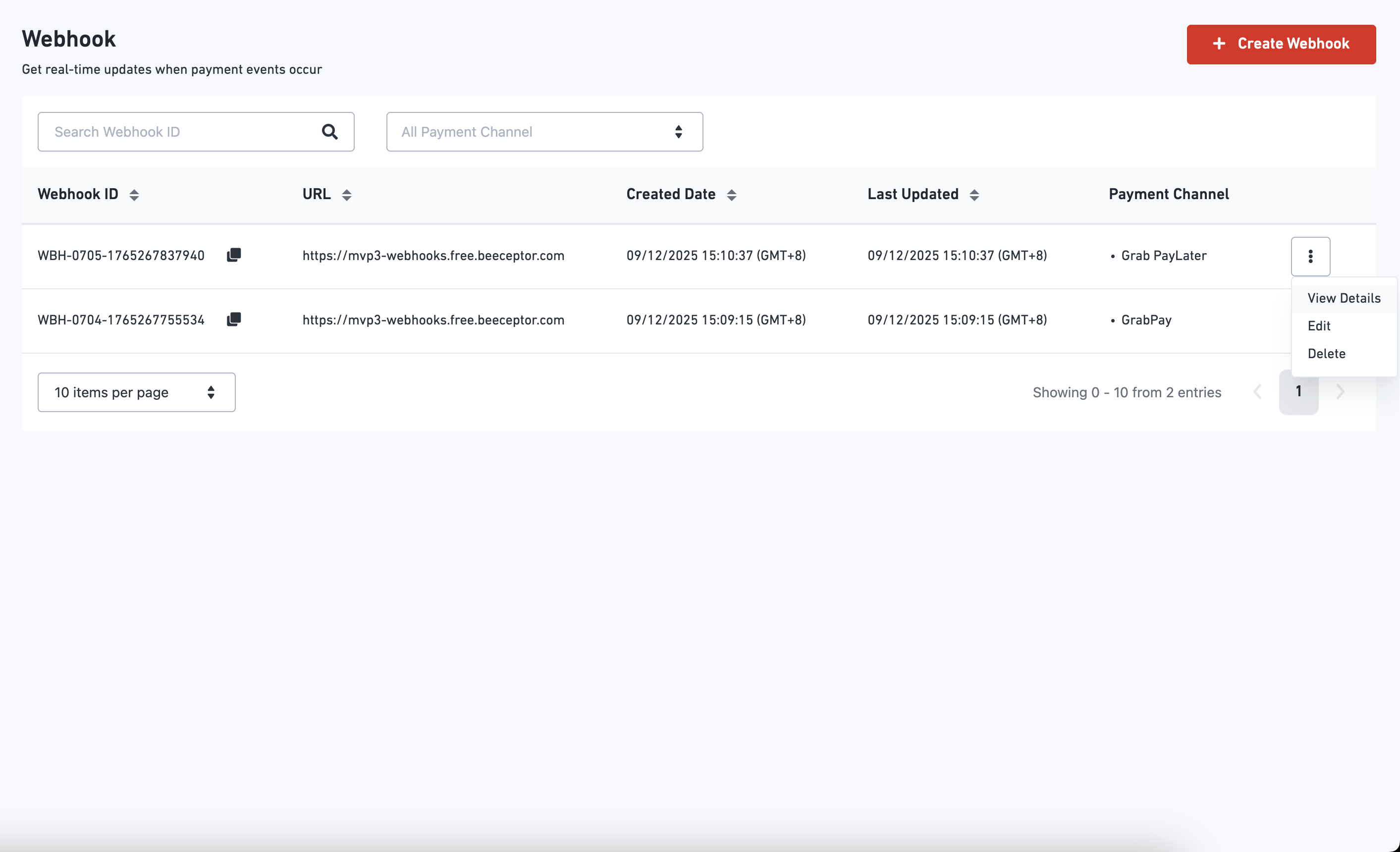
**Webhook** is a page that allows DOKU to send real-time payment status updates directly to a merchant’s system. Instead of continuously checking the transaction status, merchants can rely on automatic callbacks triggered whenever a payment event occurs.
This feature improves operational efficiency and reduces integration complexity for merchants by:
* Providing instant payment confirmation to merchant systems.
* Supporting automation such as order fulfillment, digital product delivery, or status updates to customers.
With this feature, merchants only need to configure one endpoint URL, and DOKU will forward payment events for the selected payment channels to that endpoint. The system ensures that merchants stay informed about their transaction lifecycle without additional effort.
Set your payment notification URL to receive real-time updates via API webhook (callback). The following guides show how to set up the payment notification URL for each payment method:
Merchants can:
* Create a new webhook.
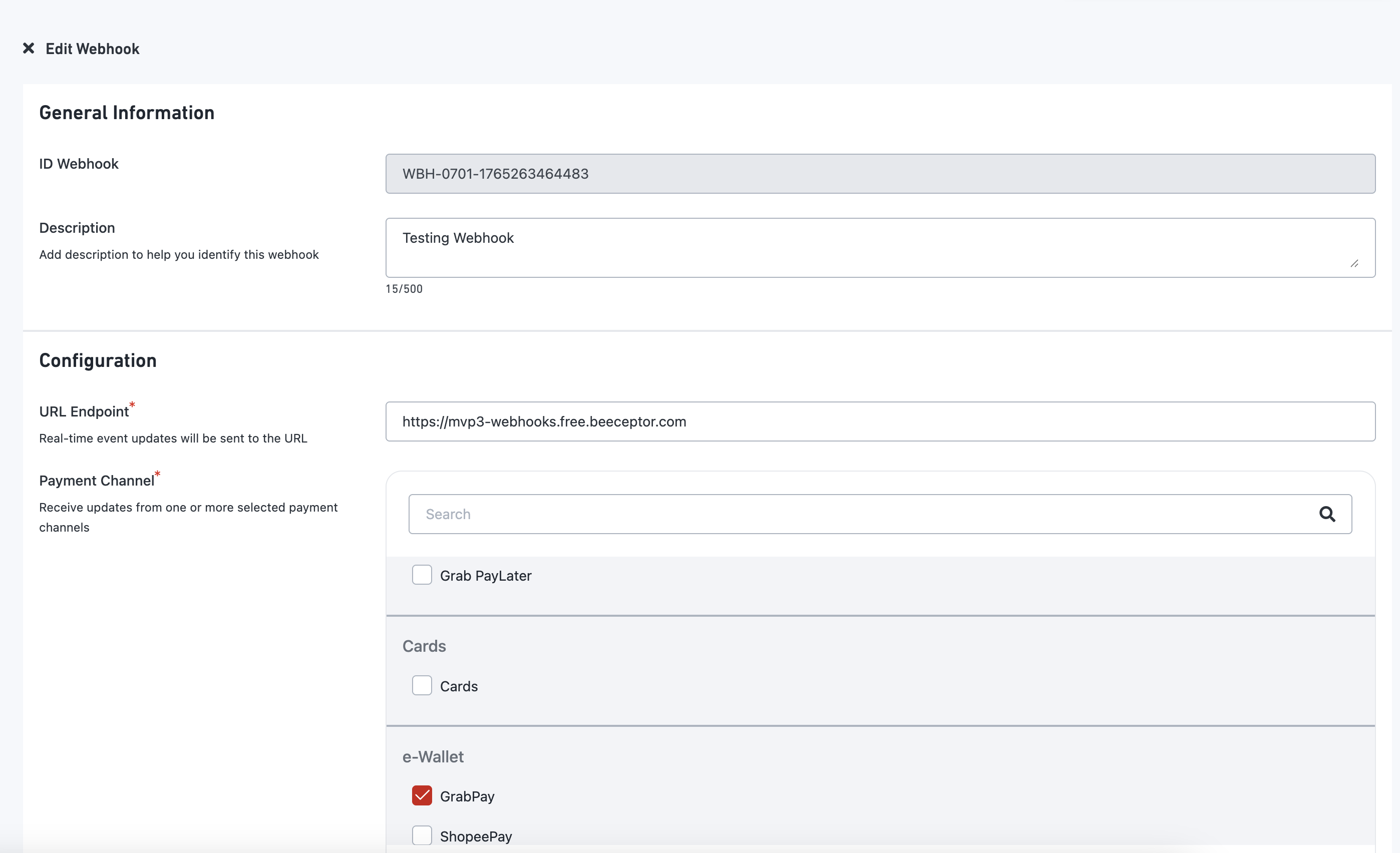
* Edit an existing webhook.
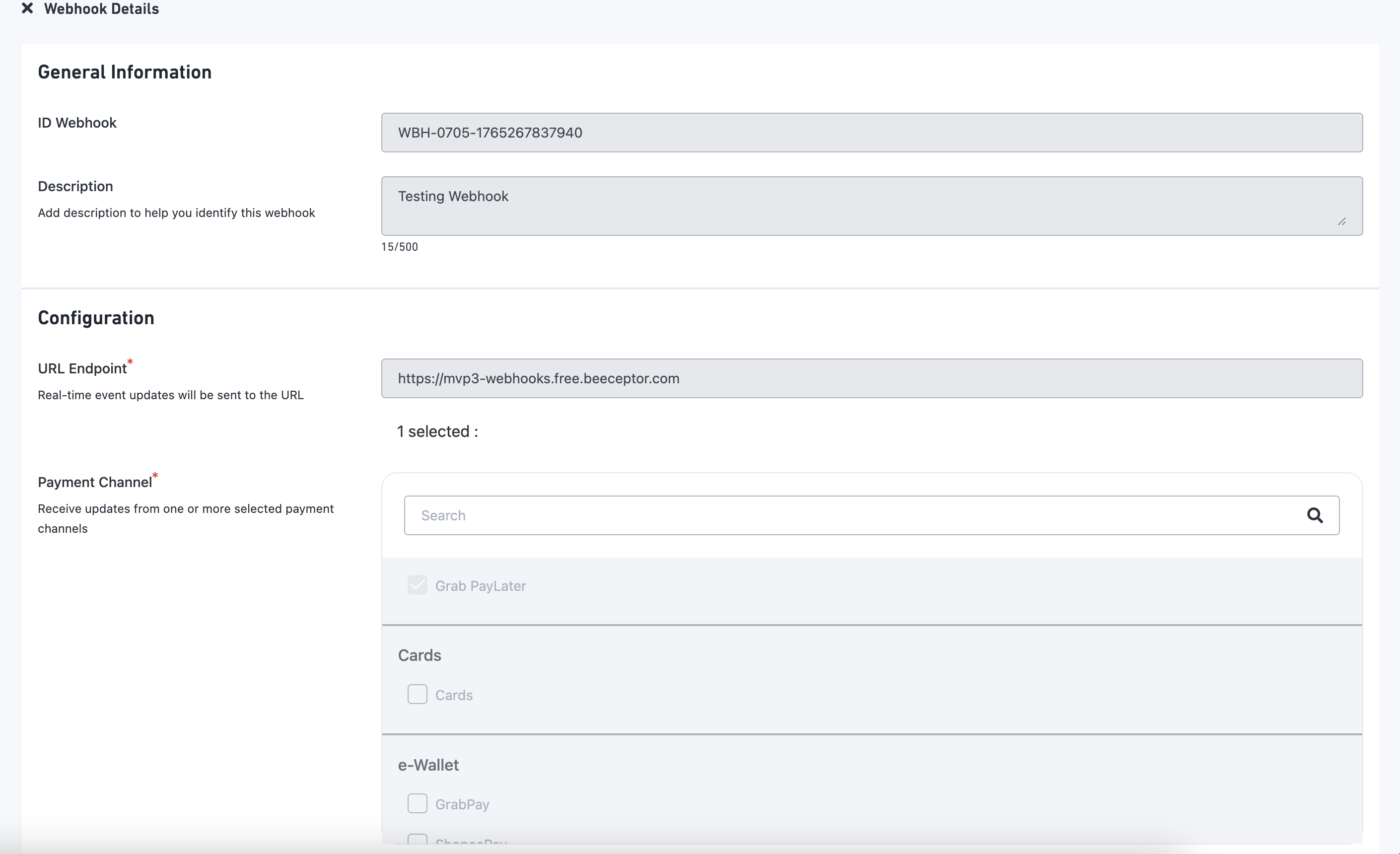
* View webhook details.
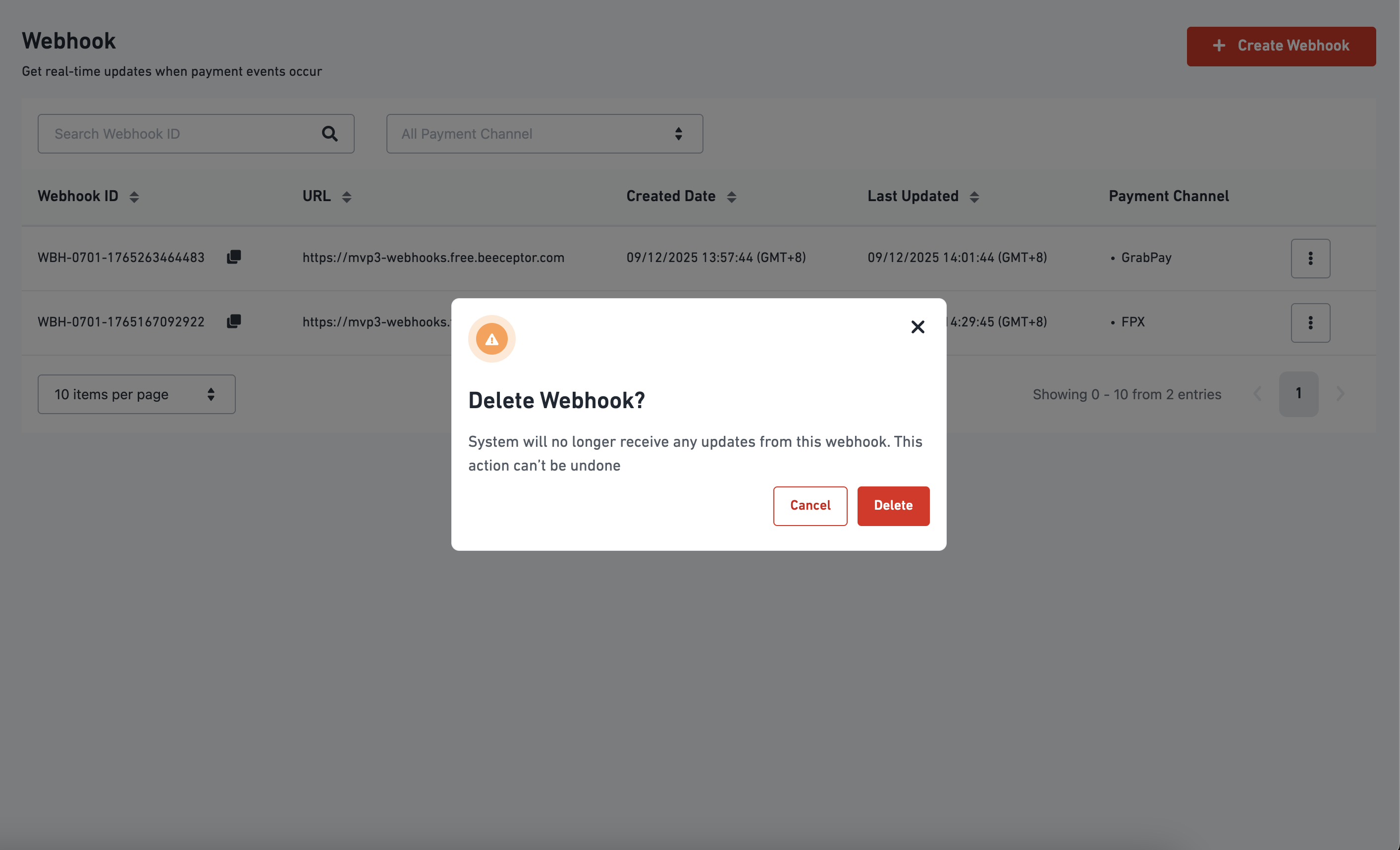
* Delete a webhook.
This section provides a step-by-step guide on how merchants can create, edit, view, and delete webhooks through the DOKU Dashboard.
### Create Webhook
You can configure your payment notification (webhook) by following the steps below:
1. Log in to [DOKU Dashboard](https://dashboard.doku.com/bo/login?utm_source=docs), and then access the side navigation bar
2. Select **Settings** from the menu
3. **Settings** page will appear. Under **Payment Settings** section, select **Webhook**
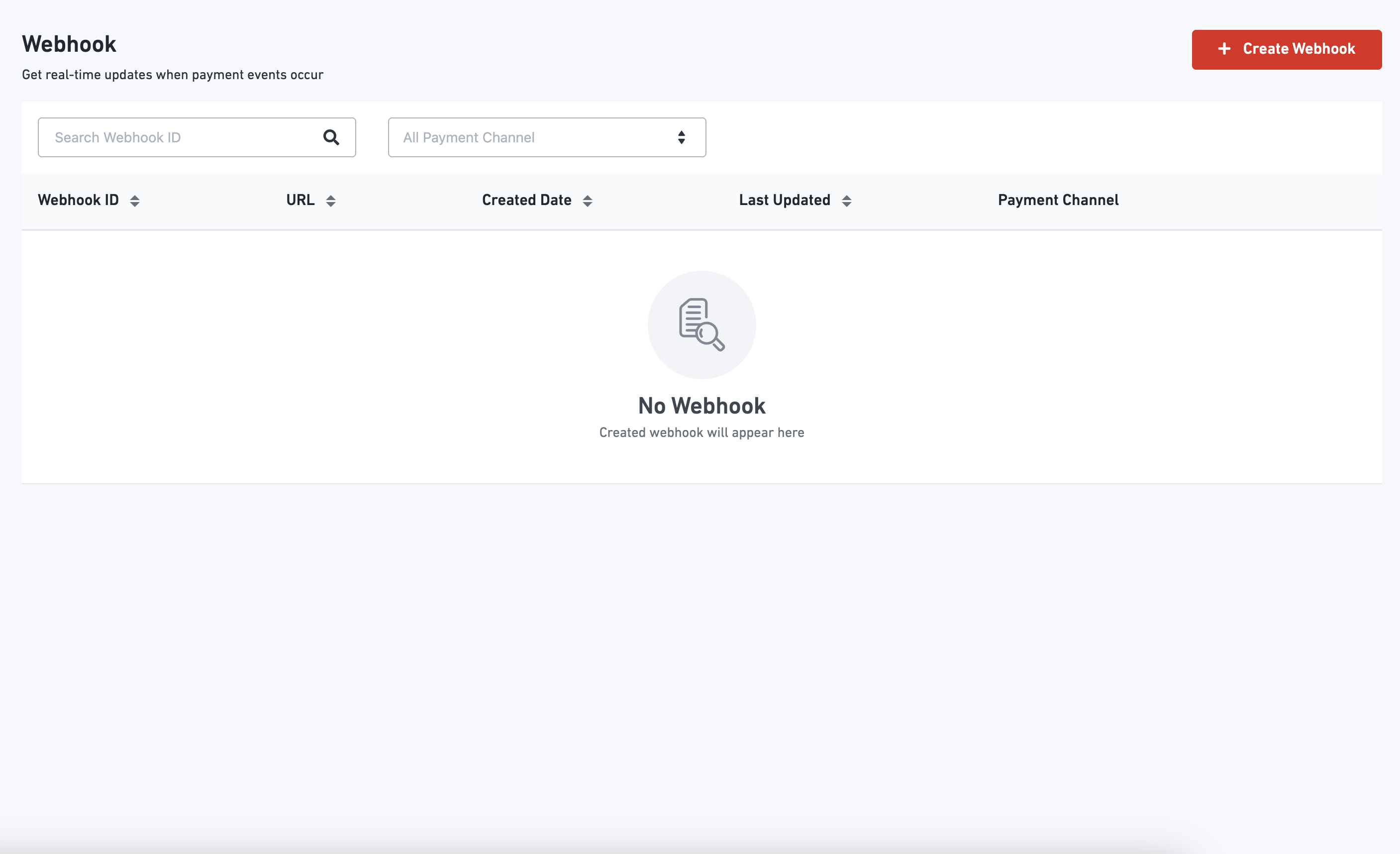
4. After the Webhook page is displayed, you can create your webhook directly from this screen.
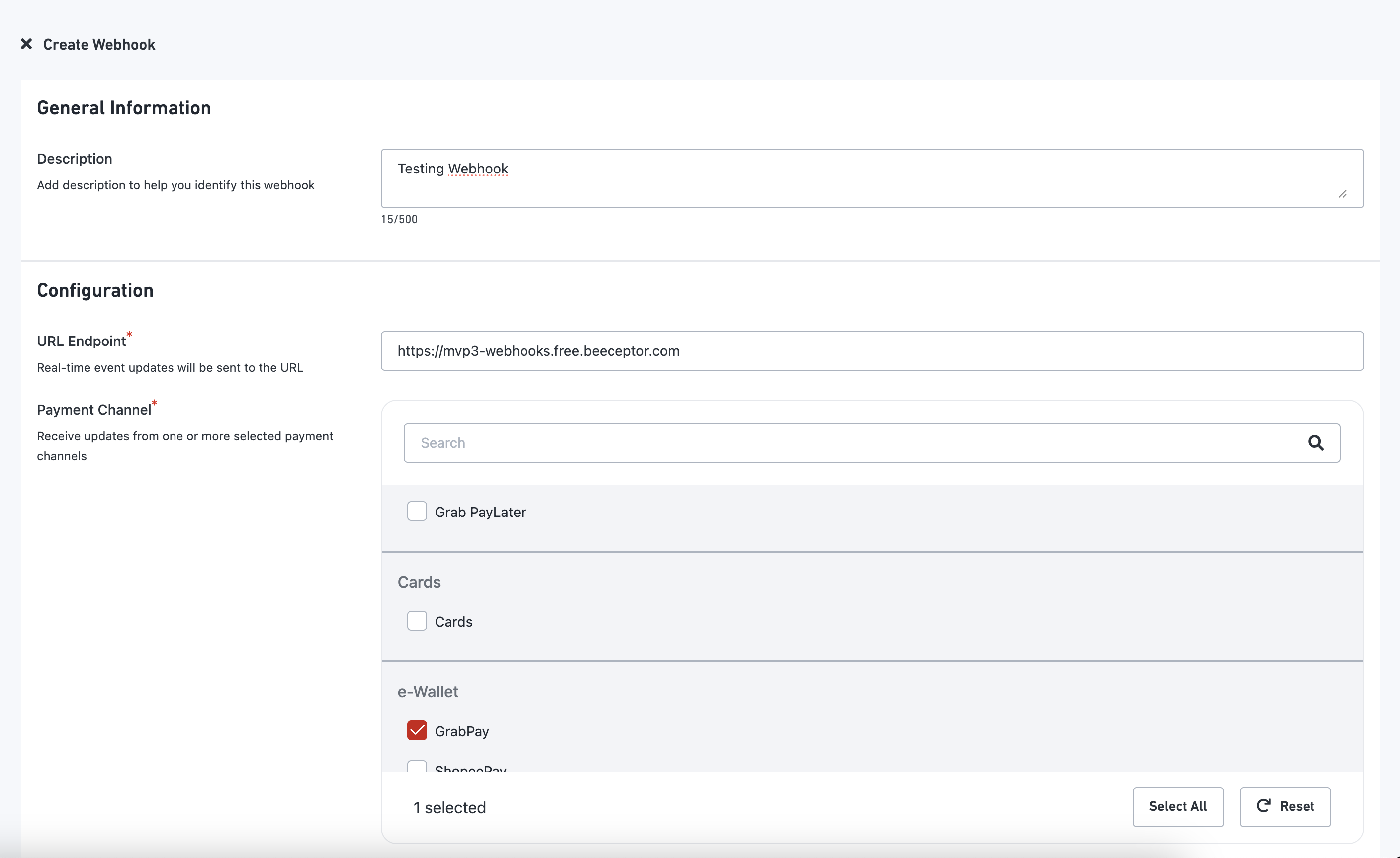
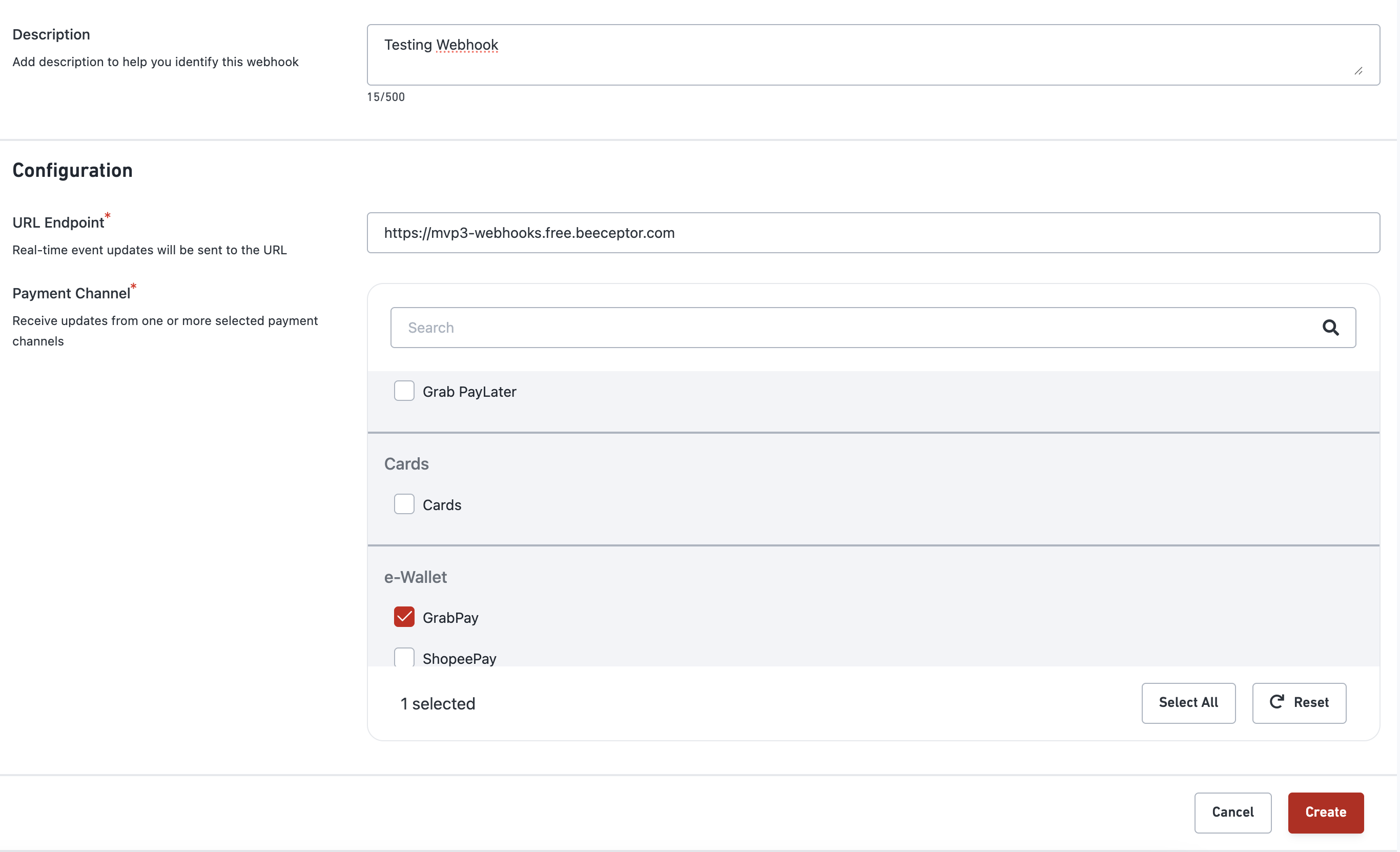
5. And then, fill in the description, add the endpoint URL, and choose your preferred payment channel. Make sure to fill in all mandatory fields.
6. Use Cancel button to go back to the previous page, or select Create button to apply your webhook settings. Payment channel cannot be reused once assigned to an existing webhook, and merchant can select one or more payment channels for receiving notifications.
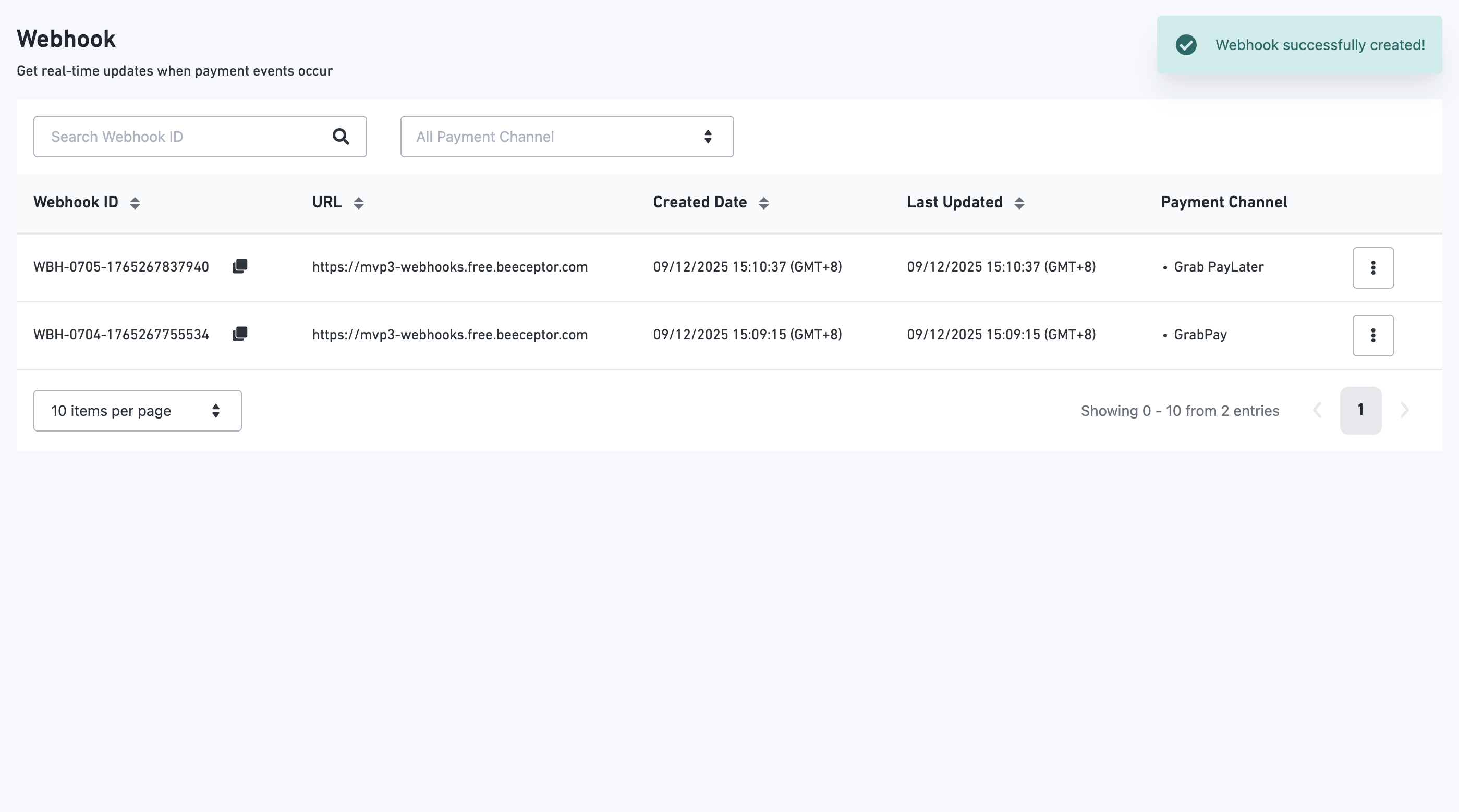
7. After the success message is displayed, your webhook setup is complete and ready to use.
### View Webhook
After the webhook is created, you can view its details by following the steps below:
1. Log in to [DOKU Dashboard](https://dashboard.doku.com/bo/login?utm_source=docs), and then access the side navigation bar
2. Select **Settings** from the menu
3. **Settings** page will appear. Under **Payment Settings** section, select **Webhook**
4. After the webhook is created, you can view its details by selecting the *View Details* option from the hamburger menu.
### **Edit Webhook**
After the webhook is created, you can edit its details by following the steps below:
1. Log in to [DOKU Dashboard](https://dashboard.doku.com/bo/login?utm_source=docs), and then access the side navigation bar
2. Select **Settings** from the menu
3. **Settings** page will appear. Under **Payment Settings** section, select **Webhook**
4. Choose Edit from the hamburger menu.
5. You can then update the necessary information and click Save to apply the changes.
### Delete Webhook
You can delete a webhook by following the steps below:
1. Log in to [DOKU Dashboard](https://dashboard.doku.com/bo/login?utm_source=docs), and then access the side navigation bar
2. Select **Settings** from the menu
3. **Settings** page will appear. Under **Payment Settings** section, select **Webhook**
4. Choose Delete from the hamburger menu.
5. A confirmation pop-up will appear. To proceed, click Delete, and the webhook will be removed.
{% hint style="info" %}
If webhook is deleted, inactive, or no URL configured notification is not sent.
{% endhint %}
---
# Agent Instructions
This documentation is published with GitBook. GitBook is the documentation platform designed so that both humans and AI agents can read, navigate, and reason over technical content effectively. Learn more at gitbook.com.
## Querying This Documentation
If you need additional information that is not directly available in this page, you can query the documentation by asking a question.
Perform an HTTP GET request on the following URL with the `ask` and `goal` query parameters:
```
GET https://docs.doku.com/get-started/manage-business/set-up-integration/webhook-payment-notification.md?ask=&goal=
```
`ask` is the immediate question: it should be specific, self-contained, and written in natural language.
`goal` is what the user is ultimately trying to achieve, the reason they need the answer. Sharing it helps GitBook give you a better, more relevant answer. A goal is most helpful when it describes the outcome the user wants rather than restating the question. For example, with `ask=how do I create an API token`, a goal like `automate deployments from our CI pipeline` lets GitBook tailor the answer to that use case.
The response will contain a direct answer to the question and relevant excerpts and sources from the documentation.
Use this mechanism when the answer is not explicitly present in the current page, you need clarification or additional context, or you want to retrieve related documentation sections.