> For the complete documentation index, see [llms.txt](https://docs.doku.com/llms.txt). Markdown versions of documentation pages are available by appending `.md` to page URLs; this page is available as [Markdown](https://docs.doku.com/accept-payments/integration-tools/e-commerce-and-plugins/shopify/shopify-integration-1.md).
# 🇲🇾 Shopify Integration
Integration Guide for Shopify users in Malaysia
## Integration Guide
This integration guide consists of 3 **mandatory** steps:
1. Install DOKU Payment App on Shopify App Store
2. Configure DOKU Payment App
3. Set Up Payment Notification on DOKU Dashboard
#### Step 1: lnstall DOKU Payment App on Shopify App Store
1. Log in to your [DOKU Dashboard](https://dashboard.doku.com/bo/login?utm_source=docs)
2. Log in to your [Shopify Store](https://www.shopify.com/login)
3. lnstall [DOKU Payment App ](https://apps.shopify.com/doku-payment-gateway)on Shopify App Store
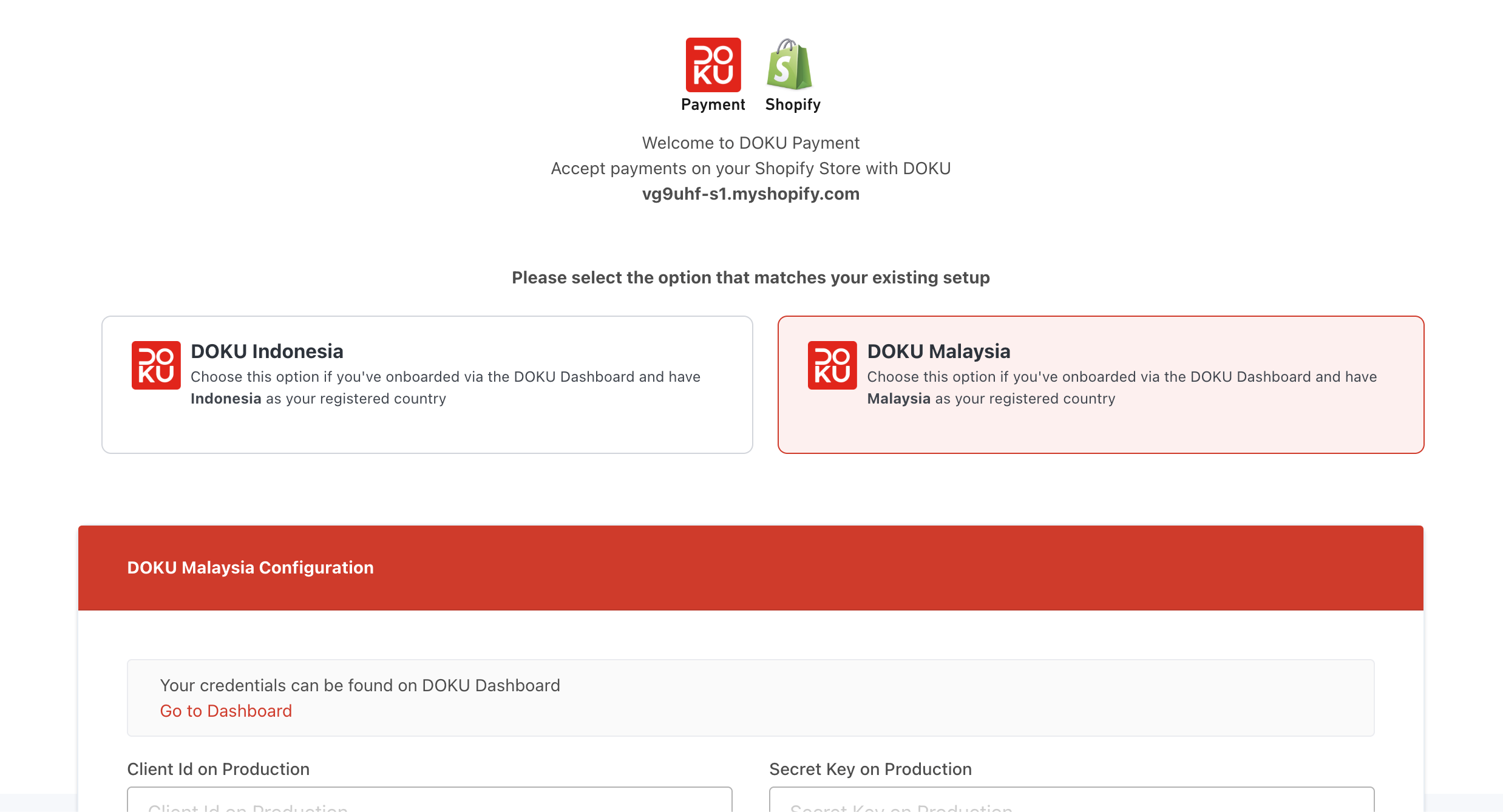
#### Step 2: Configure DOKU Payment App
1. On **DOKU Payment** Configuration page, select **DOKU Malaysia**
2. Configure the following required fields:
* **Sandbox Client ID**: Client ID retrieved from [DOKU Sandbox](https://sandbox.doku.com/bo/developer/api-keys?utm_source=docs)
* **Sandbox Secret Key**: Secret Key retrieved from [DOKU Sandbox](https://sandbox.doku.com/bo/developer/api-keys?utm_source=docs)
* **Production Client ID**: Client ID retrieved from [DOKU Dashboard](https://dashboard.doku.com/bo/developer/api-keys?utm_source=docs)
* **Production Secret Key**: Secret Key retrieved from [DOKU Dashboard](https://dashboard.doku.com/bo/developer/api-keys?utm_source=docs)
{% hint style="info" %}
Visit [Set Up Integration](/get-started/manage-business/set-up-integration.md#api-keys) for instructions on how to retrieve integration credentials (Client ID and Secret Key)
{% endhint %}
{% hint style="info" %}
For Malaysia sandbox account, register at [DOKU Sandbox Registration](https://sandbox.doku.com/bo/sandbox-registration=country=MY)
{% endhint %}
3. Click **Continue Integration With Shopify**
4. You will be redirected to the **Payment Settings** page in Shopify Admin Dashboard, where you can switch on the toggles for the payment icons you wish to display on your Shopify checkout page. (**Important Note:** The payment icons on the Shopify checkout page are only for display and do not indicate the actual payment methods that are available for payment).
Payment Settings on Shopify Admin Dashboard
Shopify Checkout Page
5. Scroll down and click **Activate**
#### Step 3: Set Up Payment Notification on DOKU Dashboard
{% hint style="warning" %}
If you skip this step, your payment status on Shopify Dashboard will not be synced with DOKU Dashboard
{% endhint %}
1. Copy the below **Notification URL** dedicated for DOKU Payments on Shopify
```
https://api.doku.com/middle/v2/shopify/notify
```
2. Log in to your **DOKU Dashboard**
* For testing transactions, visit [DOKU Sandbox](https://sandbox.doku.com/bo/login?utm_source=docs)
* For processing real transactions, visit [DOKU Dashboard](https://dashboard.doku.com/bo/dashboard?utm_source=docs)
3. Navigate to **Settings** > **Webhook,** and create webhook
1. Description: Shopify Webhook
2. URL Endpoint: Notification URL from step 1
3. Payment Channel: Select all payment methods.
4. If you have Card payments activated, Navigate to **Settings > Credit Card**
1. Go to **Payment Configuration** tab
2. Paste the Notification URL in the **Payment Notification URL** section
3. Click **Submit**
***
## Testing Payments[](https://dashboard.doku.com/docs/docs/integrations/platform/shopify-integration#testing-the-payment-in-sandbox-mode)
{% hint style="info" %}
Please ensure your sandbox credentials have been set up during your integration in[#step-2-configure-doku-payment-with-shopify](#step-2-configure-doku-payment-with-shopify "mention").
{% endhint %}
You can simulate transactions in your Shopify store using [DOKU Sandbox](https://sandbox.doku.com/bo/login?utm_source=docs) by following the steps below:
1. Log in to your [Shopify Store](https://www.shopify.com/login)
2. Go to **Settings > Payment**
3. Under **Supported Payment Methods** section, select **DOKU Payment**
4. Scroll down to **Test Mode** section and ensure that the toggle is switched on
5. Click **Save**
6. Visit your Shopify storefront and check out a product
7. At checkout, select **DOKU Payment** as your payment method
8. You will be redirected to DOKU Checkout page, where you can select your preferred payment method
9. Complete the payment using the provided simulator
10. Upon completion of the payment, you will be redirected back to your store. The transaction will be marked as completed, and the order will be confirmed.
---
# Agent Instructions
This documentation is published with GitBook. GitBook is the documentation platform designed so that both humans and AI agents can read, navigate, and reason over technical content effectively. Learn more at gitbook.com.
## Querying This Documentation
If you need additional information that is not directly available in this page, you can query the documentation by asking a question.
Perform an HTTP GET request on the following URL with the `ask` and `goal` query parameters:
```
GET https://docs.doku.com/accept-payments/integration-tools/e-commerce-and-plugins/shopify/shopify-integration-1.md?ask=&goal=
```
`ask` is the immediate question: it should be specific, self-contained, and written in natural language.
`goal` is what the user is ultimately trying to achieve, the reason they need the answer. Sharing it helps GitBook give you a better, more relevant answer. A goal is most helpful when it describes the outcome the user wants rather than restating the question. For example, with `ask=how do I create an API token`, a goal like `automate deployments from our CI pipeline` lets GitBook tailor the answer to that use case.
The response will contain a direct answer to the question and relevant excerpts and sources from the documentation.
Use this mechanism when the answer is not explicitly present in the current page, you need clarification or additional context, or you want to retrieve related documentation sections.

.png?alt=media&token=974da7d1-a2ff-4f81-b0e2-1d90beb933d0)